Connecting Power BI to Collate: Bringing Metadata Management to Your Dashboards
Introduction
PowerBI has become a cornerstone of business intelligence for many organizations, particularly as part of Microsoft's Fabric ecosystem. But as dashboard deployments scale to hundreds or thousands of reports across an enterprise, managing metadata, understanding data lineage, and maintaining governance becomes increasingly complex. This is where Collate's Power BI integration provides a practical solution.
The primary use case for connecting BI tools like PowerBI to Collate centers on cross-source lineage. This helps in understanding the complete journey of your data from source systems through transformations and ultimately to your business intelligence reports and dashboards. A companion video to this blog is available here.
When you connect PowerBI to Collate, you bring in projects, reports, and dashboards, gaining insights into how data flows through your entire analytics ecosystem. This visibility becomes invaluable when troubleshooting data issues, understanding impact analysis, or simply documenting your data architecture. It all starts with that connection.
Getting Started with the Connection
Setting up the Power BI connection in Collate is straightforward. Starting from Collate's landing page, navigate to Settings > Services > Dashboards, where PowerBI can be easily located among the extensive list of supported connectors. While data analysts might find the initial setup somewhat technical, most organizations have DevOps teams that can assist with the configuration requirements. The process looks like this:
1. Navigate to Settings: Begin by accessing the services section in Collate's settings.
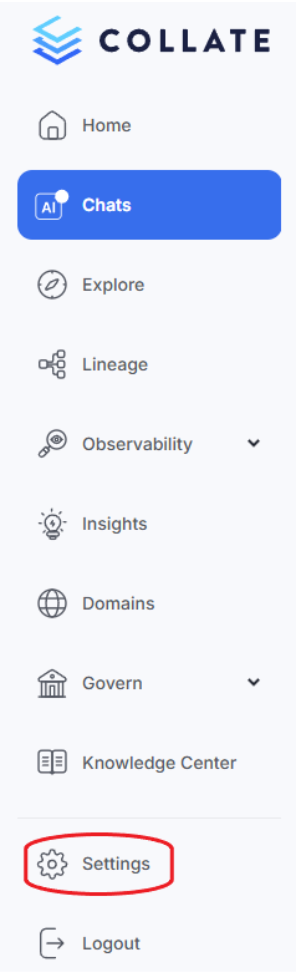
2. Add New Dashboard Service: Select “Services”, then “Dashboards”, then "Add New Service" and search for PowerBI in the service list.
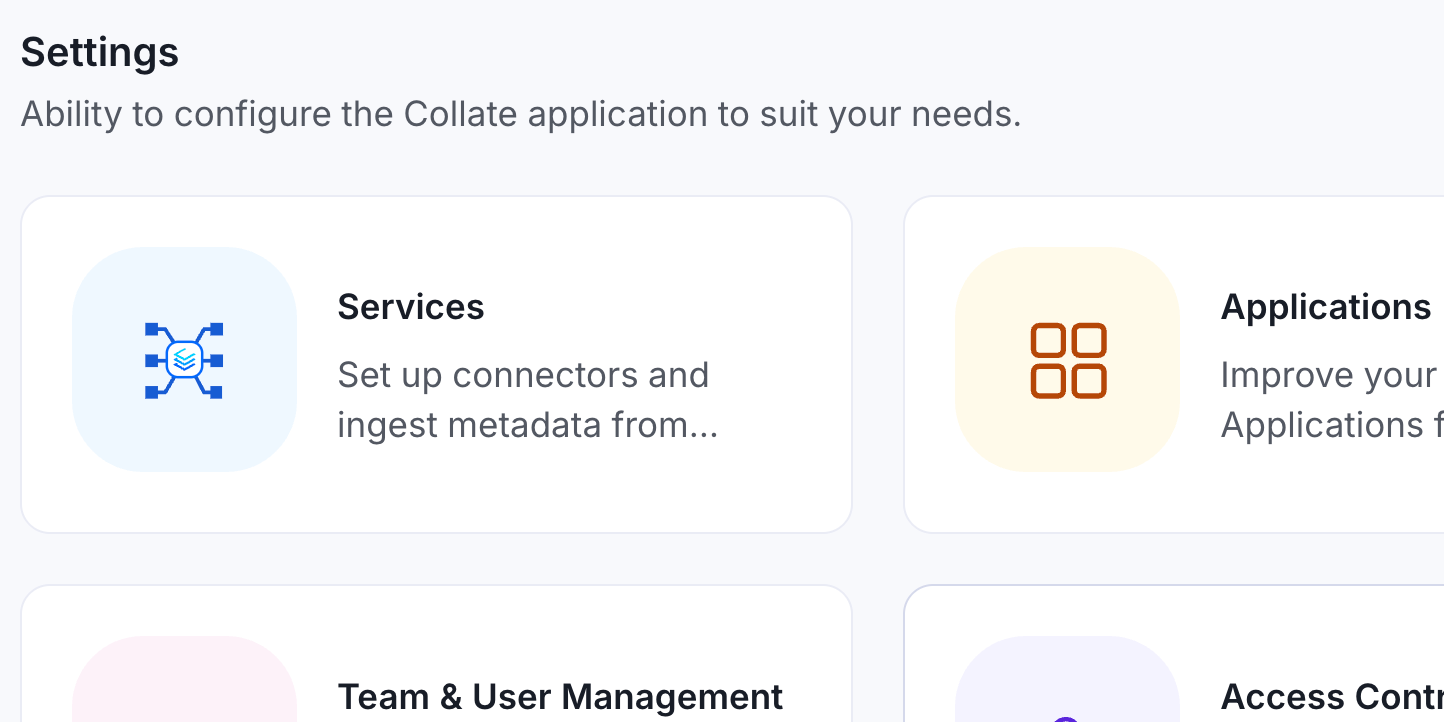
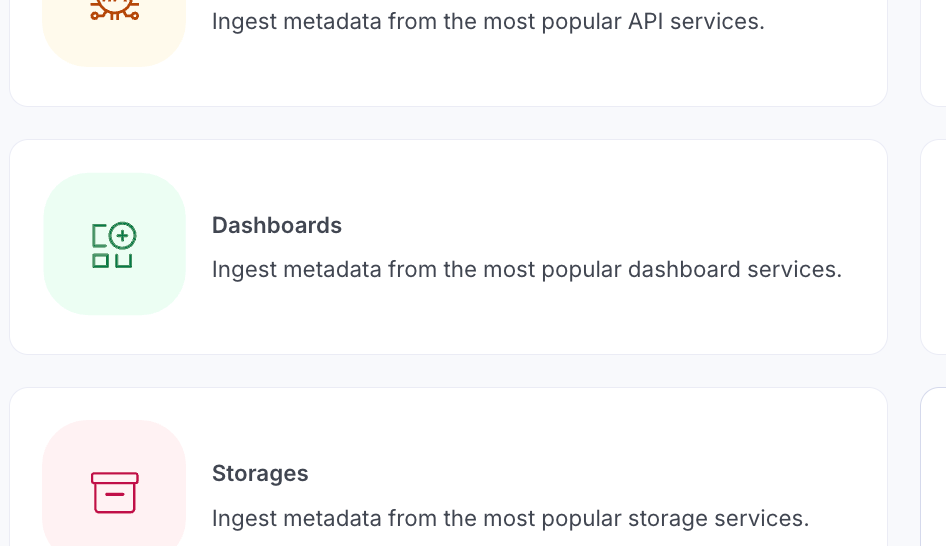
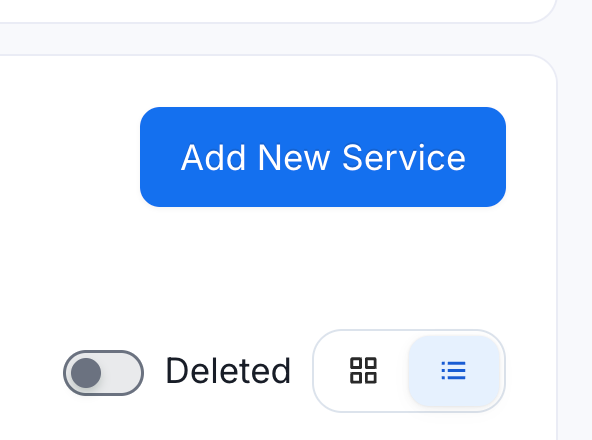
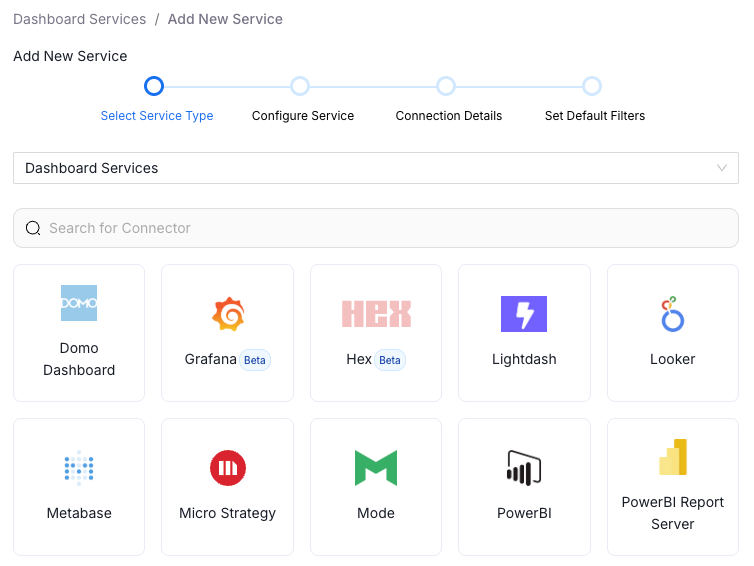
3. Configure the Connection:
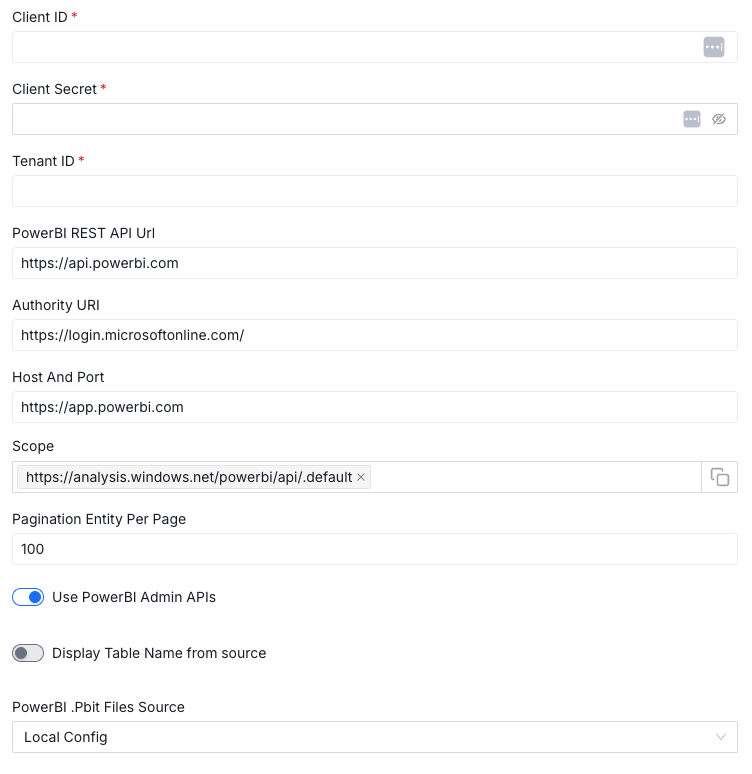
The connection requires three key pieces of information: a client ID, client secret, and tenant ID. These credentials enable API-based, read-only access to your Power BI dashboards. This approach ensures that Collate can read metadata, such as dashboard names and data model structures, without accessing or exposing your underlying data. For those without immediate DevOps support, Collate provides documentation on the right-hand side of the setup screen to guide you through the process.
Once credentials are entered, the remaining fields automatically populate with the correct default values. Advanced settings are available if needed, but most users can proceed directly to testing the connection. After a successful test, you can configure filtering options and save the service.
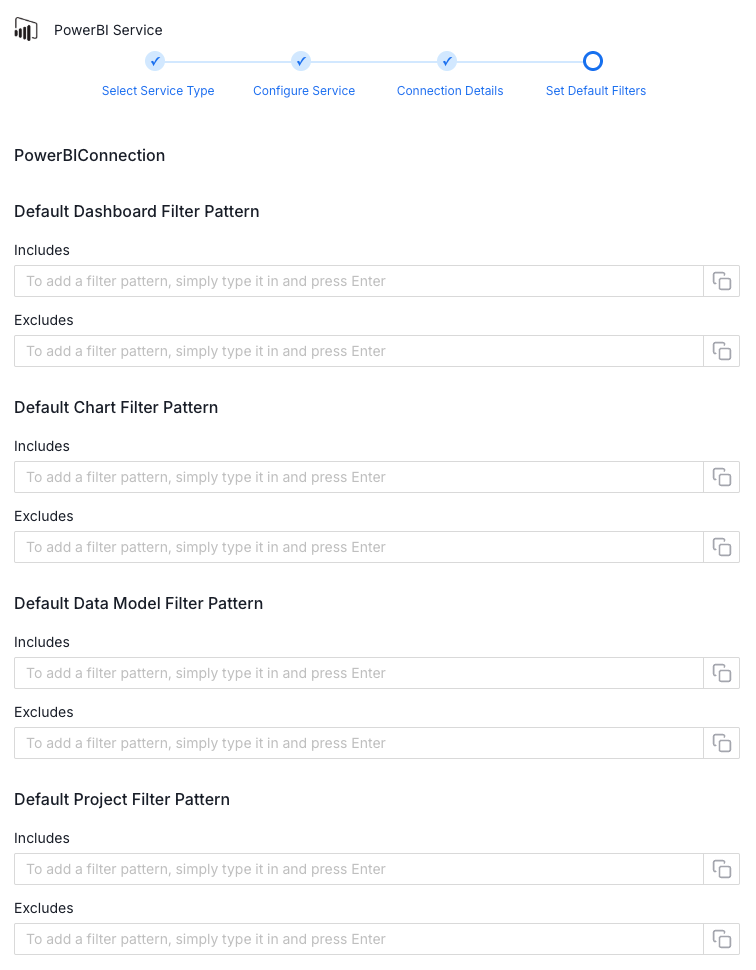
Filtering for Enterprise Scale
For large organizations managing hundreds or thousands of dashboards across multiple teams and projects, the ability to filter during ingestion becomes essential. Collate allows you to filter at the project level, isolate specific team dashboards, or filter by data warehouse or data model. This flexibility ensures teams ingest only the metadata relevant to their work, keeping the platform organized and manageable.
Scheduling and Ingestion
By default, Collate schedules metadata ingestion to run at midnight on Sundays. However, this schedule is fully customizable. You can set it to run at any interval that suits your needs, or switch to on-demand ingestion to manage cloud egress fees. The ingestion process runs automatically once configured, pulling in dashboards and data models without requiring manual intervention.
Exploring the Data Model
Once ingestion completes, you can navigate to the dashboards section to explore what's been imported. Each data model provides a comprehensive view of its components. For example, a typical sales dashboard might include customer data, dates, products, resellers, sales territories, and various other tables that form the semantic layer.
These Power BI tables represent the data models used to create charts and visualizations. Each table contains its own set of columns, similar to what you'd find in a relational database, complete with primary and foreign key relationships. This structure becomes immediately visible within Collate's interface, giving you a clear picture of how your data is organized.
Governance and Metadata Management
With your Power BI metadata now in Collate, you can apply governance practices directly to your dashboards and data models. You can assign assets to domains, designate owners, certify datasets using medallion architecture methodology, and add descriptions, tags, and glossary terms.
For instance, if a customer table contains personally identifiable information, you can tag it as "PII Sensitive" with a visual indicator. This immediately alerts other team members to exercise extra caution when working with this data. These governance capabilities transform your Power BI assets from isolated dashboards into well-documented, managed components of your broader data landscape.
Understanding Lineage
Perhaps the most powerful feature of the integration is the lineage view. Collate automatically maps the relationships between your dashboards, data models, and underlying data sources. When you view a dashboard in lineage mode, you can see exactly which data sources feed into it, how tables connect to each other, and the complete flow of data from source to visualization.
Clicking any element in the lineage view reveals additional metadata, including dashboard URLs, upstream and downstream dependencies, and governance information such as ownership and descriptions. Column-level lineage shows precisely which fields flow into which visualizations, while the nested architecture provides a high-level view of how data flows into dashboards.
This visibility becomes critical when troubleshooting. If a dashboard shows unexpected results, you can immediately trace back to the source data, identify where data quality checks might be failing, and determine which team needs to address the issue. When breaking changes occur, you can quickly assess impact and understand which datasets need attention to keep your dashboards current and accurate.
Beyond Basic Integration
The Power BI integration also supports data contracts, enabling formal agreements between data producers and consumers. This feature helps ensure that data engineering and analytics teams maintain clear handoffs regarding data structure, quality, and expectations, though this topic deserves its own detailed exploration.
Conclusion
Integrating Power BI with Collate transforms dashboard management from a scattered collection of reports into a governed, documented, and traceable system. Whether you need to understand data lineage, apply governance policies, tag sensitive data, or simply maintain visibility into your organization's analytics landscape, the integration provides the tools to manage Power BI at enterprise scale. The combination of Power BI's visualization capabilities and Collate's metadata management creates a foundation for trustworthy, well-governed analytics across your organization.
To explore further, consider the Collate Free Tier for managed OpenMetadata or the Product Sandbox with demo data.
Fashion Retailer Mango’s Data Journey with Collate
Read the case study

Sign up to receive updates for Collate services, events, and products.
Share this article


Ready for trusted intelligence?
See how Collate helps teams work smarter with trusted data